iOS 26 Hands-On: Liquid Glass!
iOS 26 Hands-On: Liquid Glass!
Summary
Marques Brownlee provides a comprehensive hands-on review of iOS 26, Apple’s major visual overhaul featuring the new “Liquid Glass” design language. The video ranks the top five new features from least to most significant: the redesigned camera app, visual intelligence improvements (including Apple’s version of circle-to-search), the updated phone app with call screening and hold assist, CarPlay improvements, and the headline Liquid Glass design. MKBHD also covers honorable mentions including Photos app updates, 3D parallax wallpapers, Messages improvements with offline AI translation, customizable alarm snooze duration, and an audio input selector. While praising the lock screen implementation and theme engine, he expresses mixed feelings about the polarizing Liquid Glass aesthetic, noting readability concerns that Apple has been addressing through beta updates.
Highlights
”Apple Intelligence: Mostly Miss Until Now”
Clip command
yt-dlp --download-sections "*2:06-3:10" "https://www.youtube.com/watch?v=FXrcFeuYtq8" --force-keyframes-at-cuts --merge-output-format mp4 -o "FXrcFeuYtq8-2m06s.mp4"“Apple Intelligence since it was first announced. Honestly, mostly miss. A lot of things that aren’t super useful, Genmoji, Image Playground, whatever. But visual intelligence that I’ve thought has potential, it has a high ceiling.” — Marques Brownlee, 2:10
”iPhones Can Still Make Phone Calls”
Clip command
yt-dlp --download-sections "*4:38-5:45" "https://www.youtube.com/watch?v=FXrcFeuYtq8" --force-keyframes-at-cuts --merge-output-format mp4 -o "FXrcFeuYtq8-4m38s.mp4"“You know what’s crazy? A lot of people don’t know this, iPhones actually still can make phone calls. I know, it’s crazy. I avoid them at all costs.” — Marques Brownlee, 4:47
”CarPlay: Finally, About Damn Time”
Clip command
yt-dlp --download-sections "*6:22-7:25" "https://www.youtube.com/watch?v=FXrcFeuYtq8" --force-keyframes-at-cuts --merge-output-format mp4 -o "FXrcFeuYtq8-6m22s.mp4"“Imagine how happy I was when I was testing this new version of CarPlay and it didn’t take up the entire screen when you get a text. Finally, it’s about damn time.” — Marques Brownlee, 6:22
”A Well-Executed Theme Engine”
Clip command
yt-dlp --download-sections "*11:25-12:40" "https://www.youtube.com/watch?v=FXrcFeuYtq8" --force-keyframes-at-cuts --merge-output-format mp4 -o "FXrcFeuYtq8-11m25s.mp4"“Whether you like it or not, you do have to admit it is a well-executed theme engine. How many times have you tried to do an icon theme where like, one or two icons gets left out and it just doesn’t quite work? But this theme engine just handles every single app right out the box.” — Marques Brownlee, 11:56
Key Points
-
0:55 #5 Camera App Redesign - Apple redesigned the camera app with improved format selection. Instead of cycling through settings, you can now directly pick video frame rates (24, 30, 60 fps) and access additional settings by swiping up.
-
2:06 #4 Visual Intelligence & Circle to Search - Apple Intelligence gets a significant upgrade with visual intelligence improvements. Apple has added their version of Android’s “Circle to Search” feature, accessible by holding the power button. Includes Ask button (ChatGPT integration), Image Search button, and ability to circle to search with Google.
-
3:51 Calendar Integration from Screenshots - Taking a photo of something with a date and time on it now offers an “Add to Calendar” button that automatically extracts event details.
-
4:38 #3 Phone App Updates - iPhone finally gets call screening (like Pixel phones have had). When unknown callers call, an automated message asks them to identify themselves, and you see the transcription in real-time. Also includes Hold Assist that detects when you’re on hold and notifies you when someone picks up.
-
6:22 #2 CarPlay Improvements - Major quality of life updates: incoming messages no longer take up the entire screen, you can now react to texts with Tapbacks, pick widgets for the left side of the dashboard, and live activities are supported.
-
7:35 Honorable Mentions - Photos app update with simplified library view, 3D parallax wallpaper feature, Messages gets backgrounds, inline polls, and offline AI translation, customizable alarm snooze duration, charging time estimates, and audio input selector.
-
9:47 #1 Liquid Glass Design - The biggest change is the new “Liquid Glass” material design with refractions and reflections across iOS 26, iPadOS 26, watchOS, macOS, and tvOS. The lock screen is particularly impressive with dynamic light reflections.
-
10:55 Readability Concerns - Apple has been addressing readability issues through beta updates, adding more background blurring to make text legible. A “Reduce Transparency” option in Accessibility settings converts Liquid Glass to frosted glass.
-
12:03 Lock Screen Customization - New floating clock can be long-pressed, dragged around, and resized. Notifications scroll underneath it with nice fade effects.
Mentions
Companies
- 0:58 Apple - Main subject of the video, developer of iOS 26
- 2:10 Apple Intelligence - Apple’s AI platform, described as “mostly miss” until now
- 2:44 Android/Google - Reference to Circle to Search feature that Android has had
- 3:20 Google - Powers the image search functionality
- 3:29 ChatGPT - Integrated into the Ask feature for visual intelligence
- 4:21 Google Calendar - Mentioned as alternative to Apple Calendar that MKBHD wishes was supported
- 4:27 Gemini - Google’s AI, mentioned as alternative chatbot option MKBHD wishes was available
Products & Features
- 0:55 Camera App - Redesigned in iOS 26
- 2:17 Genmoji - Apple Intelligence feature described as not super useful
- 2:17 Image Playground - Apple Intelligence feature described as not super useful
- 2:20 Visual Intelligence - Camera-based AI feature with high potential
- 2:45 Circle to Search - Android feature now coming to iPhone
- 4:38 Phone App - Updated with call screening and hold assist
- 5:24 Call Screening - New feature inherited from Pixel phones
- 5:44 Hold Assist - Detects when you’re on hold and notifies when someone picks up
- 6:22 CarPlay - Major updates to the car interface
- 6:50 Tapbacks - Reaction feature now available in CarPlay
- 7:40 Photos App - Updated to fix previous complaints
- 7:57 3D Parallax Wallpapers - New feature that separates foreground/background in photos
- 8:41 Messages - Updated with backgrounds, polls, and offline AI translation
- 9:17 Alarm Snooze Duration - Now customizable
- 9:31 Charging Time Estimate - Now shows how long until fully charged
- 9:38 Audio Input Selector - New feature for selecting audio sources
- 9:47 Liquid Glass - The new design language for Apple platforms
- 10:17 iOS 26, iPadOS 26, watchOS, macOS, tvOS - All platforms receiving Liquid Glass design
People
- Marques Brownlee (MKBHD) - Video creator and host
Surprising Quotes
“Apple Intelligence since it was first announced. Honestly, mostly miss. A lot of things that aren’t super useful, Genmoji, Image Playground, whatever.” 2:10
“You know what’s crazy? A lot of people don’t know this, iPhones actually still can make phone calls. I know, it’s crazy. I avoid them at all costs.” 4:47
“Finally, it’s about damn time.” (On CarPlay notifications no longer taking up the entire screen) 6:42
“Whether you like it or not, you do have to admit it is a well-executed theme engine.” 11:56
“I’ve personally always been a fan of clean, flat design… I know that’s what I prefer.” 12:33
Full Transcript
0:00 All right, we gotta talk of iOS coming soon to an iPhone near you, ‘cause this one is a pretty big update. I’ve been running the beta on my iPhone for a little while now. Yes, the number is now 26. And the public beta is out now too, which means you can test it as well. And this is the major visual overhaul that we’ve been hearing about for so long. If you’re a subscriber of this channel, you’ve heard about this before. If you watch the podcast, and now it’s landed in iOS 26. But there also is a lot more to it. So lemme walk you through the top five new features in order of how big of a deal it is. ‘Cause that feels right. Also, if you haven’t already get subbed so you can stay updated. Let’s get into it.
0:53 So number five, the new camera app. So it’s been years since Apple redesigned the camera app, but Apple has redesigned it now. They’ve updated some things and here’s why it’s really good. On the surface it looks simple just because it is. You know, it’s just the shutter and then a few other buttons at the top, and then the photo preview and then everything else is hidden, which is probably great for most people. So then when you want more controls you can see that there’s a drawer and then you can actively adjust settings like you always have. It’s just, it’s harder to access since they’re hidden.
1:31 But what I really like is if you tap the format button, it actually lets you just pick all of the format settings that you want instead of having to tap to cycle through every setting. It’s so much better for video. Instead of having to tap the frame rate to cycle to 24, then 30, then 60, just pick the one you want, finally. And then for all the rest of the settings, just hit that top right box, or even easier pro tip, just swipe up. So these are where the settings are that you are less likely to change, which is why they’re a bit more hidden. But that is a strong improvement.
2:06 So the number four is a big one for Apple Intelligence. See, Apple Intelligence since it was first announced. Honestly, mostly miss. A lot of things that aren’t super useful, Genmoji, Image Playground, whatever. But visual intelligence that I’ve thought has potential, it has a high ceiling. And it’s been in the form so far of just looking through your camera and being able to visually identify things that you’re pointing it at. But now this update includes circle to search into visual intelligence. And while it’s not super good yet, I do think that’s important, and I do think the ceiling is high just to have this included.
2:44 Because see, on Android we’ve had circle to search and it’s good, it’s incredibly useful. You hold down on the home bar and then circle whatever you want, it Google searches that, pulls up information on it. It’s kind of like a reverse image search. And Apple has now kind of brought that into the iPhone. The funny thing is they’ve made it their own way. So you hold down power and open visual intelligence, and then you’ll see some new buttons at the bottom: an Ask button, an Image Search button, or you can literally draw a circle to search something with Google. And it does a reverse image search, basically the same thing as Android. That is super useful when it works.
3:27 And then you can also use Ask to literally ask ChatGPT about the image. It’s not the fastest thing in the world, it’s a little imprecise. It’s also been a little buggy for me. But I do see a lot of potential for this to become very useful AI stuff, something that Apple Intelligence has been missing since, you know, Image Playground is just not it.
3:48 There’s also, if you happen to take a screenshot and you happen to take a photo of or have a picture of an event, something with a date and a time on it, then you can jump to the screenshots UI. And then if you wait a few seconds depending on your connection, an Add to your Calendar button appears. And that’ll add it to your Apple Calendar. And if you hit edit, you can see all the details about getting inputted details like description, location, et cetera. It’s actually pretty impressive.
4:18 I’m just gonna need this stuff to now get a little bit more robust. Let me add to my Google Calendar or some other default calendar. Or let the chatbot when I ask a question be Gemini if I want, or Claude or whatever. I know none of this stuff is likely to happen but I can dream, right?
4:38 So then number three, the phone app. You know, once upon a time phones made this thing called phone calls. And you know what’s crazy? A lot of people don’t know this, iPhones actually still can make phone calls. I know, it’s crazy. I avoid them at all costs, but you might as well have a good phone app. And once again, the iPhone inherits two of the best features from Pixel phones because call screening is finally here.
5:09 So now if you have it turned on and you get a call from an unknown number, it automatically screens. So if someone new calls you it’ll say: “Hi, if you record your name and reason for calling, I’ll see if this person is available.” And then whatever they say gets transcribed so you can see it. Hi, I’m a delivery person, I have a package for you. And then once they stop talking, you can either answer that phone call or send a canned response and then it records that voicemail for you to listen to later. Just all of this very helpful for filtering out semi-convincing spam callers.
5:44 And then the other one is Hold Assist, basically the same thing where it detects if you’re on hold and then gives you a button to let the phone listen for you. And then when it detects that the music stops playing or someone picks up, it’ll send you a notification and then let you pick up the call. So you don’t have to just sit there and wait. So that’s two of the most useful Pixel features coming to iPhone. Welcome to the party, iPhone friends.
6:07 And there’s also a new unified contacts experience that combines favorites, recent calls, voicemails all into one place, which is nice. And then this phone app is also coming to iPad and Mac as well, so you can sync this across devices.
6:22 So then number two is CarPlay. There has been a massive update to CarPlay. And I know not everyone who watches this uses CarPlay, but those who do are very passionate about it. And so imagine how happy I was when I was testing this new version of CarPlay and it didn’t take up the entire screen when you get a text. Finally, it’s about damn time.
6:45 Now, not only that, when you get a text, you can also actually hold down and react with the standard Tapbacks. Believe it or not, you couldn’t do that with any older version of CarPlay. And there’s a few things you can now customize over to the left of the dashboard, so you can pick widgets on your phone to show up there. And I found that the most useful widgets are things like media or maps, just some quick access stuff. And live activities can now show up too.
7:11 So just those things are a massive quality of life improvement. Plus there’s a little bit of the new Liquid Glass design in there. And none of this is even the next generation CarPlay which only really works on new cars with giant displays. So for the six of you watching with those cars, sorry, don’t really have an update for you yet.
7:31 But before I get to number one, since this is such a big update, there’s a bunch of honorable mentions that didn’t make my list but that are still actually pretty noteworthy.
7:40 So the photos app that everyone hates got an update to kind of halfway fix it, which is now just that it defaults to Library view which is just all your photos in chronological order, which is what we all wanted. But collections is still an option there for all the old chaos that you can dive into whenever you want.
7:57 And, okay, there’s this wild new feature where you can open up any photo just as long as it has a clear foreground and background, then you hit that little depth button in the corner. And when you do, the iPhone separates the foreground and background and then turns into a 3D parallax image. So it’s separating the subject from the background and literally filling in behind them so you can sort of peek around behind it by moving your phone around. It’s so good. It’s really, really good. You can set these images as wallpapers too. So the clock kind of sits behind the subject on your lock screen. You know, ordinarily this would look a bit gimmicky but it’s so clean that I actually don’t mind using it. It’s super well done.
8:41 And then messages, okay, Messages is finally catching up to other messaging apps with some features. Like you can add backgrounds to threads or have inline polls for making group decisions or group chat individual mentions. Cool. And there’s also now AI translation built into messages, which all work offline fully. That’s huge, ‘cause each one that you download is a few hundred megabytes, but then they work whether you have an internet connection or not.
9:10 And then come to think of it, a lot of these actually should have been added years ago or at least have been on Android for a while, but it’s gonna be nice to have them on iPhone now too. You can choose your alarm snooze duration. You can just pick a number of minutes instead of the default 9 minutes which it’s been for forever. And also now if you’re charging your phone it finally will actually estimate how much longer it will take to fully charge, an absolute classic from Android.
9:37 And my nerdy personal favorite, an audio input selector right in Control Center. Just something I personally use all the time, love to see it.
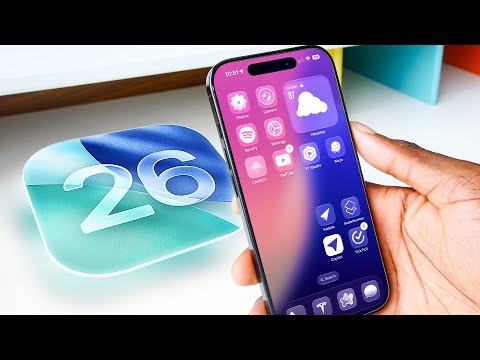
9:47 But then the obvious number one is Liquid Glass. This redesign of the entire operating system in this new material design language with transparency and refractions and reflections. And it’s kind of polarizing, actually. Some people love it, some people hate it. It’s so polarizing actually that Apple has started making adjustments already.
10:12 So originally the idea is to have this consistent design among all of Apple’s platforms, iOS 26, iPadOS 26, watchOS, macOS, tvOS, and really centering around this translucent aesthetic with the frosted glass and reflections of the real environment that your windows live in. So we saw a lot of that in the keynote.
10:34 I think this pulling down the lock screen, just the way it’s totally unnecessarily over the top but super impressively animated and reflecting the light based on the environment and the angles that it hits, the theoretical layers of glass… I think this encapsulates it all. This is what Liquid Glass is all about.
10:55 But there are some concerns, mainly around some stuff that’s been changing which is around readability. And a lot of this is what’s been getting tuned that Apple has done since beta 1, which is like everything is clear, everything is super liquidy. And now we’re on Beta 3. And there’s more places in the UI where you’re getting, you know, background blurring just to make some text actually readable and a bit less chaotic.
11:25 So there’s still the dramatic stuff like the all-clear icons. You can have a clear icon theme, which is, okay, it’s actually really impressive. How many times have you tried to do an icon theme where like, one or two icons gets left out and it just doesn’t quite work? But this theme engine just handles every single app right out the box. But then again, that’s all optional, especially with the clear home screen is just a theme that you choose to use or not. Whether you like it or not, you do have to admit it is a well-executed theme engine.
12:03 But then, so there are some highlights. You know, the new lock screen clock is amazing. You’ve probably seen the videos of it. Long press it, drag it around, resize it, move it anywhere. And then once you set that, the notifications know to respond to, you know, scrolling notifications underneath it. Super nice, fades behind the clock. It’s awesome. My favorite part of this new design is definitely the lock screen.
12:29 But some other parts, meh. Eh, I don’t know. Like, I’ve personally always been a fan of clean, flat design. I don’t, maybe that’s just me. I know that’s what I prefer. So you know, the extremely glossy Control Center, like quick settings, you know these bubbly things, I could take or leave them. But I’m sure over time they’ll grow on me.
12:51 But then some other parts just look straight up weird sometimes. Like they obviously need text to be as legible as possible, and I think they’re gonna keep working on this. Like they’re actively switching between dark and light mode for text like if the content behind it changes. And sometimes it can get wonky, especially with more complex backgrounds. You know, versus imagine if it was against a clean, flat background. It would be a lot more boring. But this is definitely a way to make things more visually interesting so you can’t accuse this of being boring.
13:25 Some people also have noted that there is a reduced transparency option in Accessibility. And so when you click that, most of the transparency goes away, or it kind of goes from Liquid Glass to sort of frosted glass in most places. So if you do want to turn that down you can.
13:42 But I am so interested now to see if Android is gonna try to copy this, this aesthetic thing. I mean, we know these companies look at each other all the time. And it would be super obvious if one of them tried to copy it. But I don’t know, is this the beginning of divergence for these softwares, where one of ‘em is clean and flat and one of them is material view? Very curious to hear your thoughts. And lemme know if you are gonna try the beta, drop a comment below. Thanks for watching. Catch you on the next one. Peace.